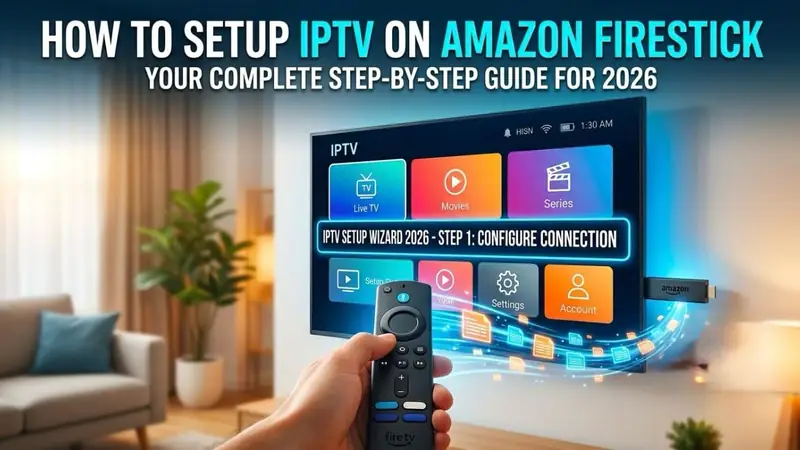
Setting up IPTV on your Amazon Firestick is easier than you think. This step-by-step guide walks you through the entire process — from enabling unknown apps to loading your first channel list.
What You Need Before Starting
- An Amazon Firestick (any generation) connected to your TV
- A stable Wi-Fi connection (minimum 5 Mbps for HD)
- Your MSS Prime IPTV M3U URL or Xtream Codes credentials
- The Downloader app (free from the Amazon App Store)
Step 1: Enable Apps from Unknown Sources
On your Firestick, go to Settings → My Fire TV → Developer Options. Turn on Apps from Unknown Sources and ADB Debugging. This allows you to install third-party IPTV apps.
Step 2: Install the Downloader App
Search for "Downloader" in the Amazon App Store and install it. This free app lets you download APK files directly to your Firestick.
Step 3: Install IPTV Smarters Pro
Open Downloader and enter the URL for IPTV Smarters Pro APK. Once downloaded, tap Install then Open. This is the most recommended IPTV player for Firestick users.
Step 4: Enter Your MSS Prime IPTV Credentials
Open IPTV Smarters Pro. Choose "Login with Xtream Codes API". Enter the username, password, and portal URL we sent you on WhatsApp. Tap Add User.
Step 5: Browse and Watch
Your channels will load automatically. You can browse Live TV, Movies, Series, and EPG (Electronic Programme Guide). Enjoy your MSS Prime IPTV subscription!
Need help with setup? Our WhatsApp support team will guide you through the entire process in real time.
Get Setup Help on WhatsApp